How to Recover Your ItsDeductible Data and Import It into DeductIt
If you used Intuit's ItsDeductible to track your charitable donations, you probably noticed it shut down on October 21, 2025. The app is gone, but your data isn't—at least not yet. Intuit still lets you download your donation history through their Data & Privacy portal, and DeductIt can import it directly.
Here's how to get your data back.
Step 1: Request Your Data from Intuit
Your ItsDeductible data lives in Intuit's systems, and you can request a copy through their account portal. Here's how:
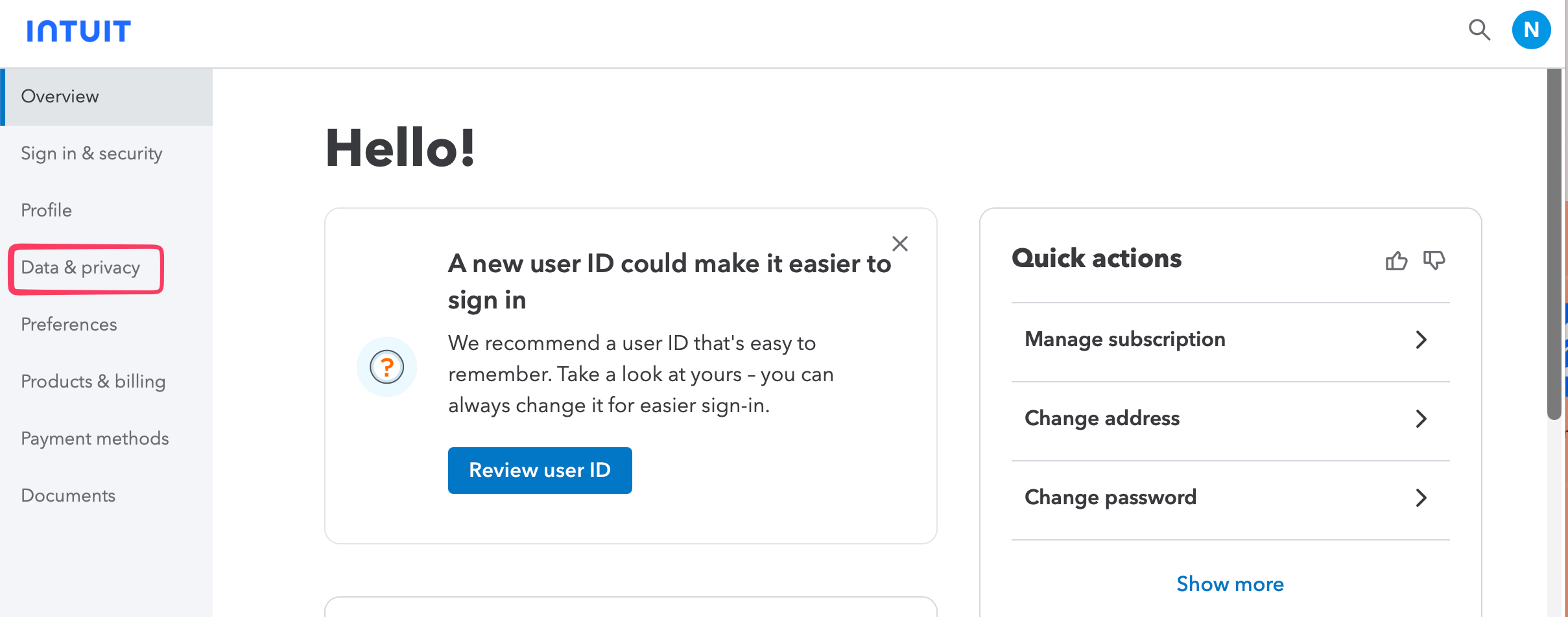
- 1 Go to accounts.intuit.com and sign in with the same account you used for ItsDeductible
- 2 Select "Data & privacy" from the left menu
- 3 Click "Download" and choose TurboTax (or Intuit Account) as the product
- 4 Submit your request
Now the hard part: waiting. Intuit says the download can take up to 15 days to prepare (in our experience, it's usually closer to 5). You'll get an email when it's ready.
Step 2: Download and Find Your File
When Intuit emails you, follow the link to download a ZIP archive. Unzip it and look for a file called:
ItsDeductibleOnline.xlsx
This holds your complete donation history—every item, cash gift, stock donation, and mileage trip you ever logged. It's a standard spreadsheet, so you can open it to peek at your data, but you don't have to—DeductIt parses it for you.
ItsDeductibleOnline.xlsx for the import.
Step 3: Import into DeductIt
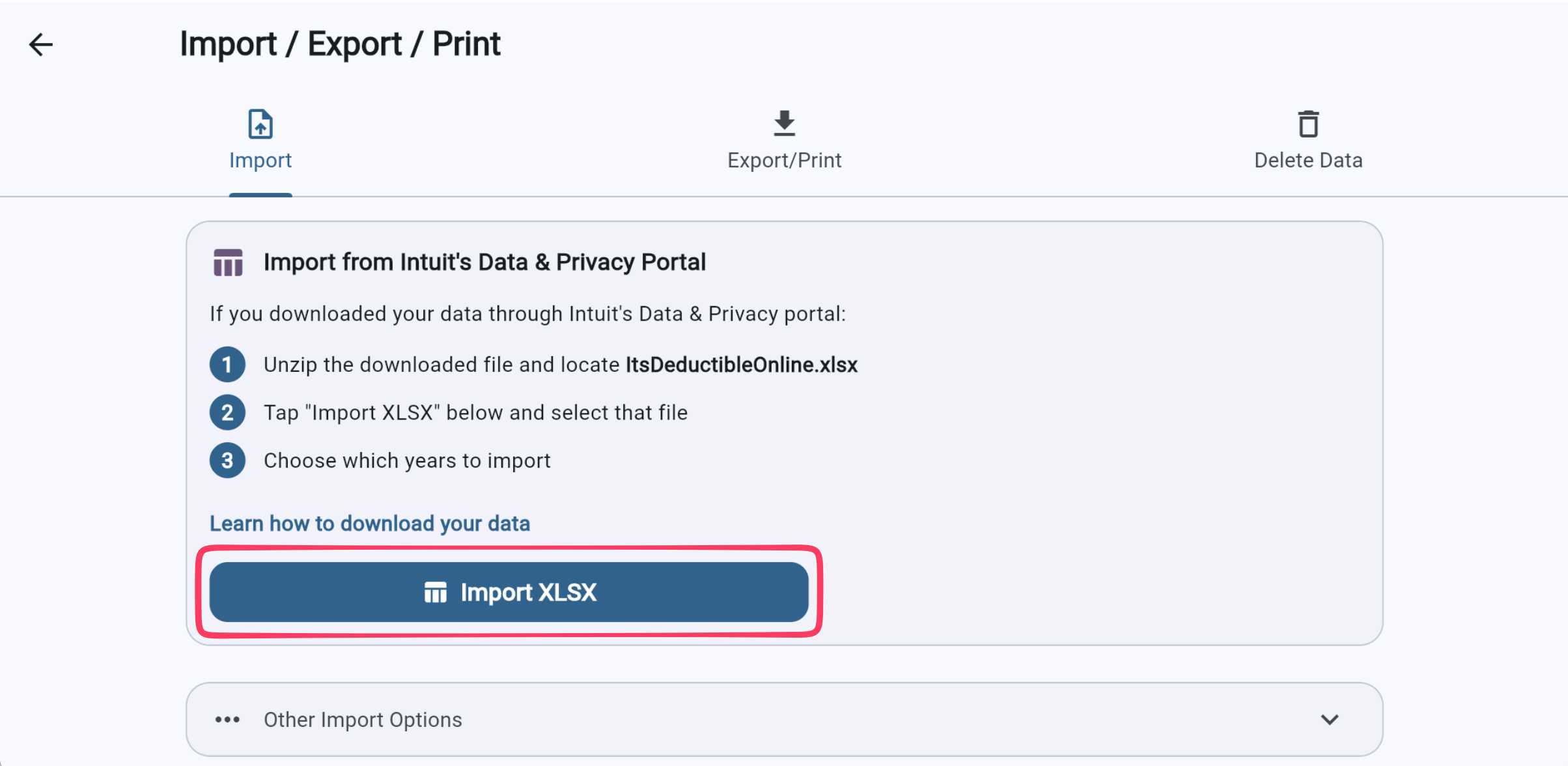
Open DeductIt, tap your profile icon (top right), and select Import / Export / Print. On the Import tab you'll see "Import from Intuit's Data & Privacy Portal".
- 1 Tap "Import XLSX"
- 2 Select the
ItsDeductibleOnline.xlsxfile from your device - 3 DeductIt scans the file and shows you which tax years it found—pick the years you want to import
- 4 Review the summary and confirm
That's it. Your donations are imported, organized by charity and year, ready to browse or transfer to TurboTax.
What Gets Imported
The import brings over everything ItsDeductible tracked:
- Item donations — clothing, household goods, electronics, furniture, with descriptions, quantities, conditions, and fair market values
- Cash donations — monetary gifts with amounts and dates
- Stock donations — stock symbol, shares, value on donation date, and acquisition date
- Mileage — charity-related driving with miles and additional costs
Charity names and locations come through too, so your donations stay organized under the right organizations.
A Few Things to Know
Year selection
Long-time users may have a decade of history in their file. The year picker defaults to the last five years—pick whichever years you actually need.
No duplicates check
Import the same file twice and you'll get duplicate entries. Easiest to just import once.
Already have the old ZIP exports?
If you downloaded your data directly from ItsDeductible before the shutdown (the app used to export ZIPs), use the separate "Import from ItsDeductible ZIP" option on the same screen. The Data Portal method is for people who missed the shutdown.
After Import: Automated Transfer to TurboTax
Once your donations are in DeductIt, you can push them straight into TurboTax—no screen-by-screen typing. We offer automated entry for every version of TurboTax.
TurboTax Online
Install our free DeductIt Chrome extension, open TurboTax in Chrome, and start the transfer from DeductIt. The extension fills in each donation screen for you while you watch.
TurboTax Desktop (Windows & Mac)
Our free DeductIt Tax Helper companion app automates entry directly into TurboTax Desktop on both Windows and macOS. It types every field—charity names, addresses, items, amounts, dates, stock donations, and mileage—exactly as you would, without the tedium.
Prefer to do it yourself? DeductIt also generates a copy-paste guide and a TXF file for manual import. For the full breakdown, see our TurboTax transfer guide.
Import your ItsDeductible data and pick up right where you left off.
— The Foothill AI Team