Getting Your Donations into TurboTax: A 2025 Guide
When Intuit discontinued ItsDeductible, we didn't just set out to replace it—we set out to build something better. DeductIt was created from the start with that mission: a modern, more capable app for tracking charitable donations.
The best thing about ItsDeductible was the simplicity of getting your donations into TurboTax. It was one flawless import, and you were done. We fully expected to deliver that same seamless experience with DeductIt.
TXF—the only file import method TurboTax supports—handles charity names, amounts, and dates well, but can't carry addresses, item details, or valuation methods. So we've built multiple transfer paths to fill the gaps: automated entry tools, a step-by-step copy-paste guide, and TXF import for quick bulk transfers. Each has real strengths depending on what you donated.
We're also working with Intuit and other tax software providers toward better import pathways for the 2026 tax year. In the meantime, here's how each option works—and which one is right for you.
Before You Transfer: Address Verification
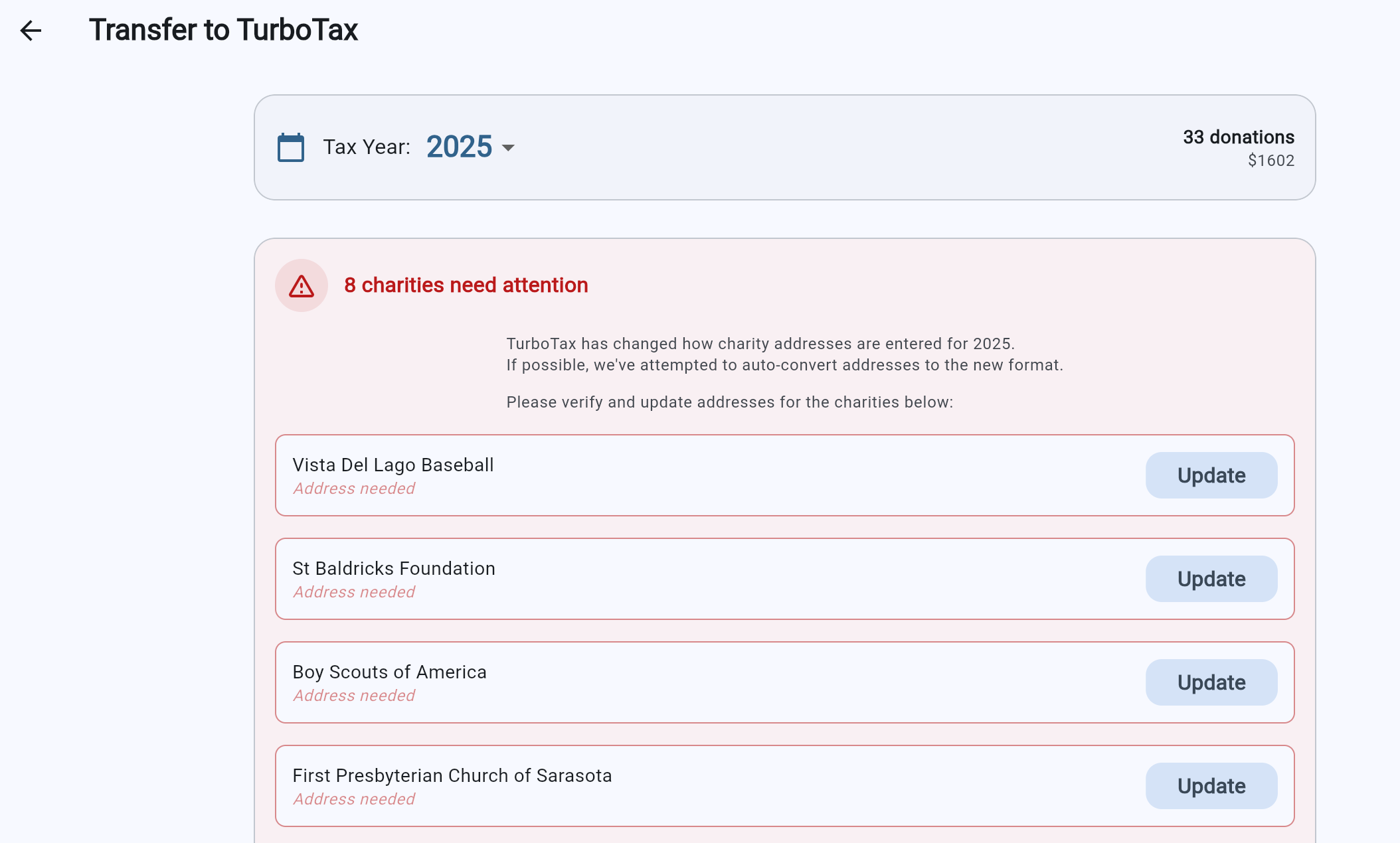
First, a quick heads-up: starting with the 2025 tax year, TurboTax requires confirmed street addresses for every charity you donated to. DeductIt checks this before you transfer—if any charities are missing an address or have an unverified one, you'll be prompted to confirm or add it.
If you imported data from ItsDeductible, we'll attempt to auto-detect addresses from your original data. You just need to confirm they're correct.
Step One: Which TurboTax Are You Using?
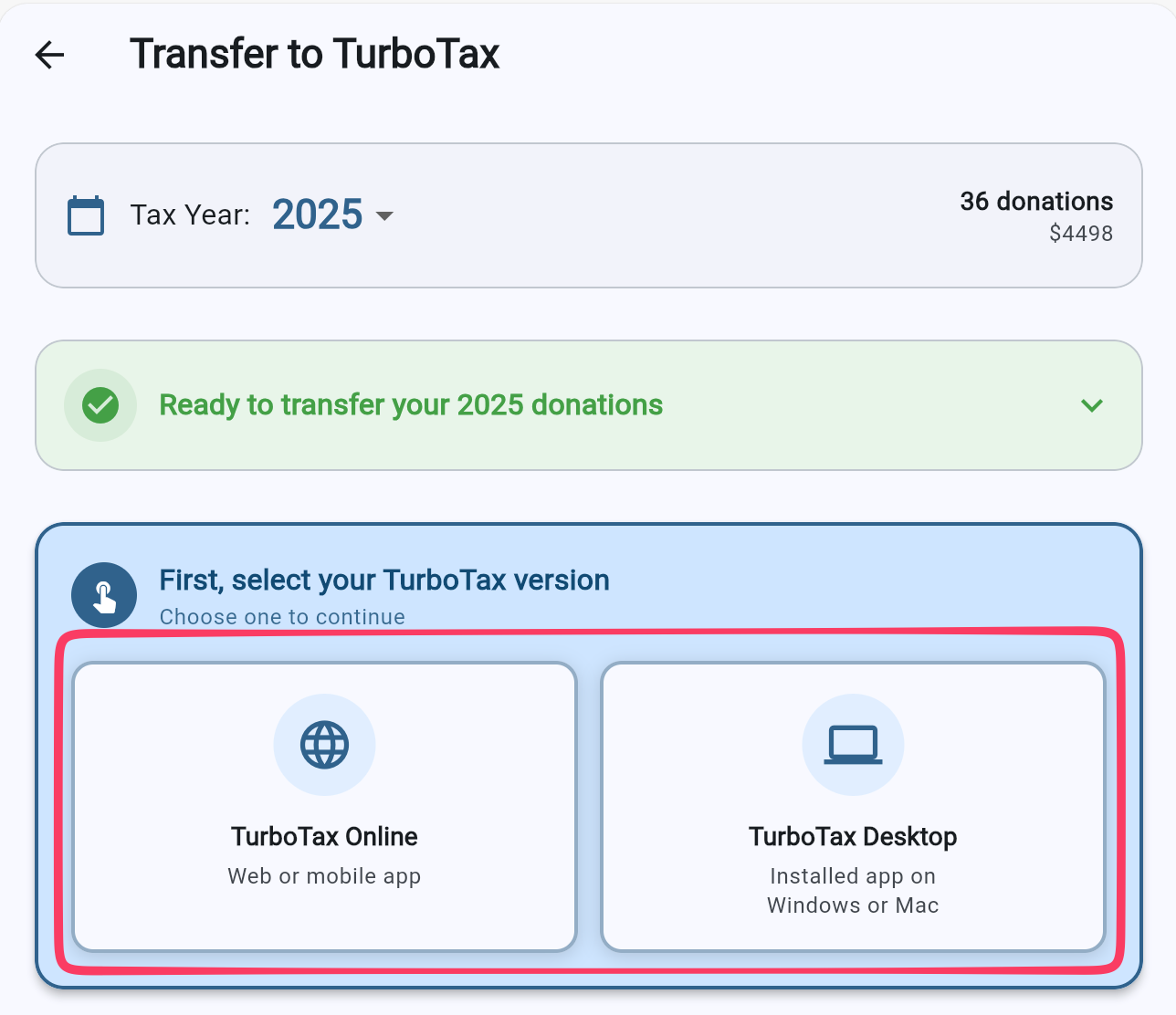
This is the first question DeductIt asks when you tap Transfer to TurboTax, and it matters more than you might think.
TurboTax Online is the web version at turbotax.intuit.com (or the TurboTax mobile app). Most people use this one. You log in with a browser and do everything online.
TurboTax Desktop is the software you install on your Windows PC or Mac. You buy it once (on CD or download) and it runs locally. Some long-time TurboTax users prefer this version.
The reason this matters: each version has different ways to get data in. TurboTax Online doesn't support file imports at all—there's no way to upload a data file. TurboTax Desktop does support file imports, but with significant caveats we'll get to in a moment.
TurboTax Online
Automated Entry with the Chrome Extension
Our free DeductIt Chrome extension fills in the TurboTax Online donation screens for you—no copying and pasting required. Install the extension, open TurboTax in Chrome, and start the transfer from DeductIt. It handles all donation types: cash, items, stock, and mileage.
For items over $500, it fills in Form 8283 fields with reasonable defaults (see what to review below).
Copy-Paste Guide
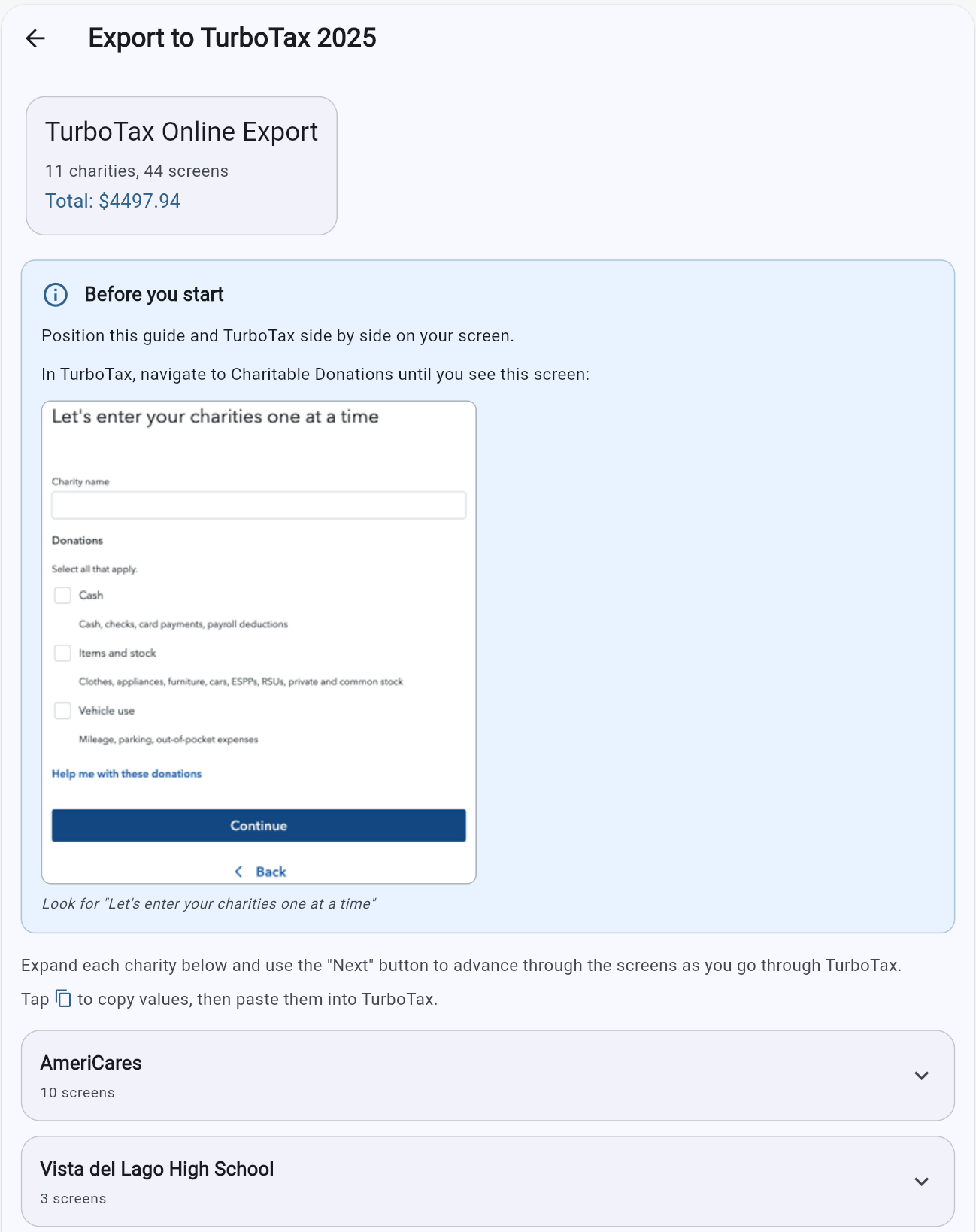
If you'd rather not install an extension, DeductIt generates a step-by-step copy-paste guide. It formats your donation data exactly how TurboTax expects it, organized by charity—you walk through each entry, copying values into the corresponding TurboTax fields. Works in any browser.
TurboTax Desktop (Windows & Mac)
Desktop users have three options. The right choice depends on what kinds of donations you have.
TXF File Import
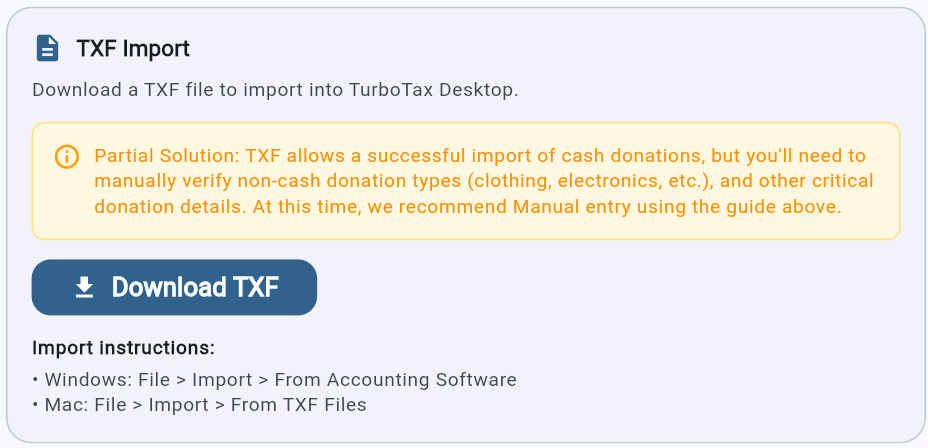
TXF is a standard file format that TurboTax Desktop can import. It's the fastest way to get your cash and item donation amounts into TurboTax—one file import and your totals are in.
What TXF carries: charity names, donation dates, and dollar amounts for cash and non-cash item donations. Donations are grouped per charity, so each charity appears as a single entry with its total.
What TXF can't carry: charity addresses, item descriptions, donation type classifications (clothing vs. electronics vs. furniture), valuation methods, or any Form 8283 details. You'll add these within TurboTax after importing.
What TXF excludes entirely: stock donations and mileage donations. These require specialized TurboTax fields that the TXF format doesn't support. If you have stock or mileage, enter those manually or use the Tax Helper.
After importing, all donations show "Needs Review" in TurboTax. Click "Done," answer the follow-up questions about special situations, then go back and review each donation—adding addresses, descriptions, and Form 8283 details where needed.
Automated Entry with Tax Helper
The DeductIt Tax Helper is a free companion app that automates entering your donations directly into TurboTax Desktop on both Windows and macOS. It fills in every field—charity names, addresses, amounts, dates, item descriptions, valuation methods—automatically.
Unlike TXF, the Tax Helper handles all donation types including stock and mileage. For items over $500, it fills in Form 8283 fields with reasonable defaults (see what to review below).
Trade-off: The Tax Helper processes each charity and each batch of items screen-by-screen. For users with a large number of item donations across many charities, this can take a while. If you have mostly cash donations with a few small items, TXF import may get you there faster.
Copy-Paste Guide
Same as the online version—a step-by-step guide with every field pre-formatted and ready to copy into TurboTax. No software to install.
Which Option Is Right for You?
The best transfer method depends on what you donated:
- Mostly cash donations (monetary gifts, checks, credit card): TXF import is the fastest path. Your totals import instantly, and cash donations don't trigger Form 8283—so there's minimal cleanup.
- Items under $500 per charity: TXF works well here too. You'll need to add item descriptions and donation types after import, but there are no Form 8283 questions to deal with.
- Items totaling $500+ to any charity: TurboTax will ask Form 8283 questions regardless of which method you use. The Tax Helper and Chrome extension pre-fill these with defaults; TXF and copy-paste leave them for you. Either way, you must review.
- Stock donations: Tax Helper (Desktop) or Chrome extension (Online). TXF cannot import stock donations.
- Mileage: Same—Tax Helper or Chrome extension only. TXF doesn't support mileage.
- Large volume of item donations: Consider TXF for the initial import (gets your amounts in quickly), then fill in details within TurboTax. The automated tools process each screen individually, which can be time-consuming with hundreds of items.
After Transfer: What to Review
No matter which method you choose, you'll need to review your donations in TurboTax before filing. TurboTax collects information that DeductIt doesn't—particularly around IRS Form 8283 for non-cash donations. Here's what to expect.
Form 8283: Non-Cash Donations Over $500
IRS Form 8283 is required whenever your non-cash donations to a single charity total $500 or more in a tax year. This applies to items (clothing, furniture, electronics) and stock—but not cash or mileage. TurboTax fills out Form 8283 based on your answers to several questions:
- "How did you get this item?" — Purchase, Gift, Inheritance, Exchange, or Created
- "Purchase price" — What you originally paid (your cost basis)
- "Did you get this item over multiple dates?" — Yes or No
- "Did you own this item for more than a year?" — Yes or No
- "Will the charity use your donation in a way that's related to what they do?" — This affects whether you can claim the higher fair market value
- "Uncommon situations" — Retained partial ownership, attached restrictions, or gave others rights to the item
DeductIt doesn't collect this information because it varies per item and is only relevant at filing time—not when you're logging a donation. This means:
- Automated entry (Tax Helper / Chrome extension) fills these fields with sensible defaults: acquisition = Purchase, owned more than one year = Yes, multiple dates = Yes, charity use = No (assumes resale), uncommon situations = None. These defaults are right for most donated household goods, but you should verify each one.
- TXF import doesn't touch these fields—you answer each question yourself in TurboTax.
- Copy-paste guide walks you through the screens and notes which fields DeductIt can't fill in.
What Else to Check
- Charity addresses — Required for all donations. TXF doesn't carry them; automated entry fills them in from DeductIt. Verify they're correct.
- Item descriptions and donation types — TXF doesn't carry these. Automated entry and copy-paste include them. TurboTax may ask you to classify items (clothing, household goods, etc.).
- Item condition — For non-cash items over $250, TurboTax may ask about condition (good, fair, poor). This affects valuation.
- Valuation method — TurboTax asks how you determined the item's value (thrift store, comparable sales, appraisal). DeductIt's fair market values come from published price guides, but TurboTax wants to know your source.
Quick Comparison
| TXF Import | Automated Entry | Copy-Paste | |
|---|---|---|---|
| Platform | Desktop only | Desktop (Tax Helper) & Online (Chrome ext.) | Both |
| Cash donations | ✓ Imported | ✓ Entered | ✓ Guided |
| Item donations | ✓ Amounts only | ✓ Full details | ✓ Full details |
| Stock donations | ✗ Not supported | ✓ Full details | ✓ Guided |
| Mileage | ✗ Not supported | ✓ Full details | ✓ Guided |
| Charity addresses | ✗ Manual | ✓ Filled in | ✓ Guided |
| Form 8283 ($500+) | You fill in | Pre-filled with defaults (review needed) | You fill in |
| Speed | Fast (one import) | Moderate (screen-by-screen) | Varies |
| Extra software | None | Tax Helper app or Chrome extension | None |
Getting Started
Ready to transfer? In DeductIt, tap on your profile picture at the top right, then select Transfer to TurboTax. Select your tax year, verify your charity addresses, pick your TurboTax version, and you're on your way.
Track donations, transfer to TurboTax, and keep your records organized.
Looking Ahead: 2026 Tax Year
We know the current transfer experience isn't where it needs to be, and we expect much more from ourselves. DeductIt is a leader in donation tracking, and we plan to work directly with Intuit and other tax software providers to create a truly seamless import for the 2026 tax year—the kind of one-shot experience you remember from ItsDeductible, but better. We're working hard to make that a reality.
— The Foothill AI Team